How to Use Binly · 6 min read
How to get started with Binly
To get started with Binly, create an account, choose one drawer, shelf, or box, and save a clear photo of what is there. Create an inventory and a place so you know where to look later. Add item names for keyword search, then try finding one belonging before capturing more.
This guide is for new Binly users who want to find household belongings or project supplies without cataloging their whole home. You will build one useful photo-to-retrieval loop, with optional labels and extra detail when they help.
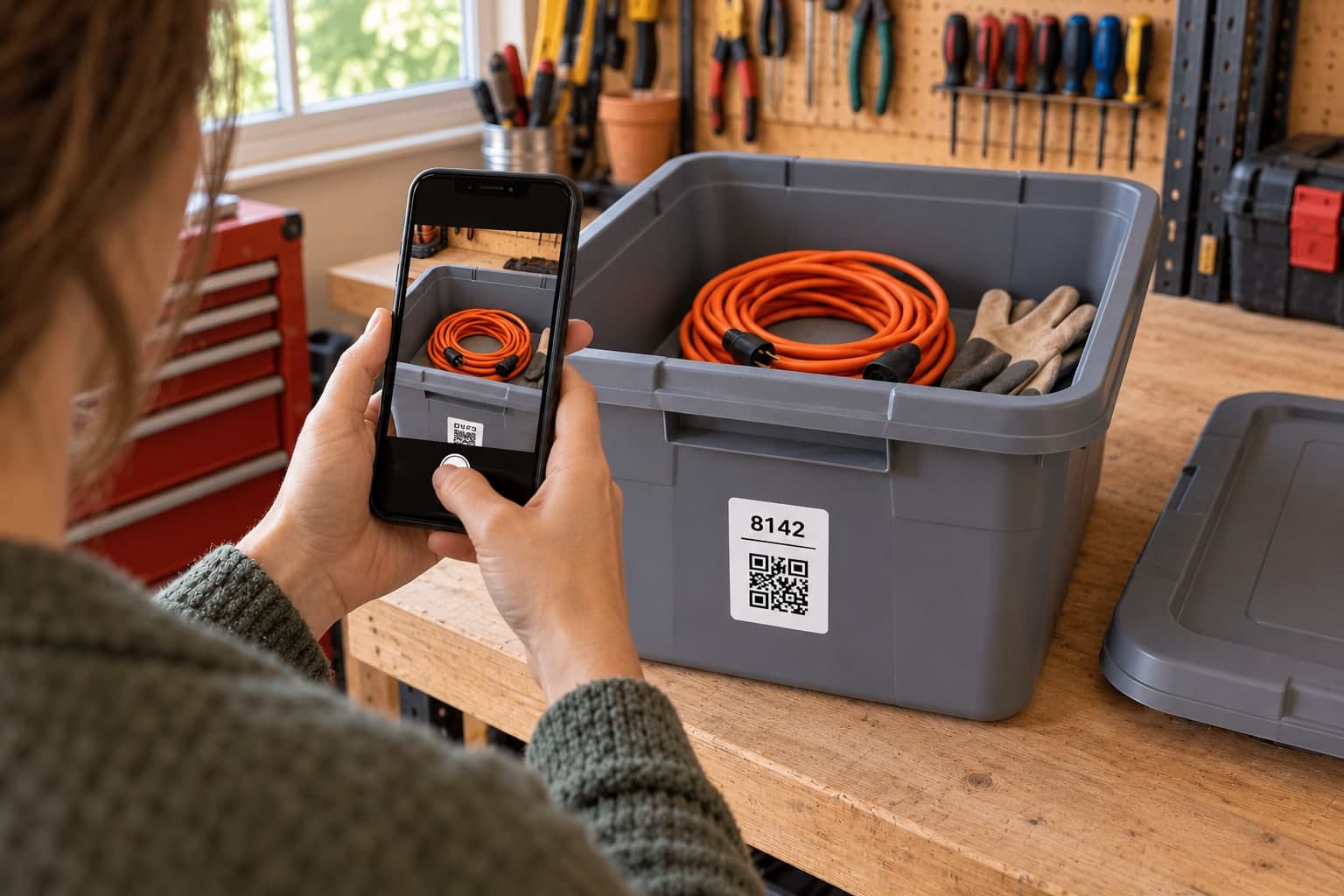
What is Binly, and what do I need to start?
Binly is a memory system for physical belongings: it helps you remember what you own and where it currently is. You can use Binly in a browser on your phone or computer, with no native app or special hardware required.
Bring a camera or an existing photo and choose one place you often have to search. A mixed drawer is just as valid as a neatly arranged shelf; you do not need to reorganize before taking a photo.
- Inventory: a top-level space such as Home that holds your places and items.
- Place: a physical spot such as Garage Shelf 3, a drawer, or Bin 8142. Places can sit inside other places.
- Item: a belonging or group of belongings you record, such as an extension cord.
How do I set up my first place in Binly?
Create one inventory, add a place that matches your real storage, and save a photo there. Start with a single spot so you can test whether the record helps you find something.
Step 1: Create your account
Use Get Started on the Binly site to open the customer app and create an account. New accounts have a Guided Walkthrough showing a camping lantern in a Blue Bin; follow it or choose Skip to Inventory.
Step 2: Add one inventory
From Inventories, choose Add Inventory and give it a name such as Home. Use an inventory for the broad space, rather than creating a separate inventory for every drawer.
Step 3: Add a real place
Open your inventory and choose Add Place. Name the physical spot, such as Garage Shelf 3 or Hall Closet Top Shelf, then save it. You can use Parent Place to nest a smaller place inside a larger one when that makes the route easier to follow.
Step 4: Save a useful photo
Take a clear picture of the contents. For a simple visual record, save a photo on the place; for searchable item names, use Quick Add to create items in that place. Check that the saved photo shows enough detail to recognize what is there.
Step 5: Find one belonging again
Open quick search and look for an item name or your place name. Open the result, check its photo, and follow its place path to the physical spot. If it leads you to the right drawer or box, you have a useful starting point.
How do I use Quick Add and Inbox for photos?
Use Quick Add Basic to capture photos now and decide where they belong in Inbox later. Use Advanced when you already know the destination place and want to choose how item records are created.
Open Quick Add from the Add button in the top navigation. With Advanced, choose the destination and an AI option available on your plan:
- None: creates one item per image; add useful names yourself.
- Identify Main Item: tries to name the main item in each photo.
- Identify all Items: creates one listing describing the visible items together.
- Separate Items: creates separate listings for detected items.
Check suggested names against your photo. AI may miss something hidden or misidentify an object; a clear name you would actually search for is more useful than a long description.
Finish saving Inbox photos: pending photos belong to your account in the current browser on the current device and do not sync across devices. Assign or process them before clearing browser data, and keep your original photos until the resulting records have saved successfully.
What does a useful first Binly record look like?
A useful record shows a recognizable belonging and a place you can actually find. For example, record an orange extension cord in Home → Garage → Shelf 3 → Bin 8142, then search for “extension cord” to check the route.
This is a worked example, not a customer result: the same cord can share a container with paint rollers and spare cables. You do not need to move it into a category called Electrical before saving its current location.
- Photo: show the cord clearly, rather than only the closed lid.
- Item name: use “orange extension cord” if the color helps distinguish it.
- Place: record the actual shelf and container, not only “somewhere in the garage.”
- Optional note: add the length if it matters for your next project.
Read how to organize by location instead of category for more naming examples.
Do I need QR labels to use Binly?
QR labels are optional shortcuts to a saved place. You can start with photos and search, then add a label to a drawer, shelf, or box you revisit often.
A place label identifies the place; the saved contents can change. Print supported labels at home, or print on plain paper and attach them to the container. Open the place and check its current saved contents when you scan.
A QR label does not detect new contents or track physical movement. Update the record when belongings move, and review privacy and sharing settings before giving a link or label to someone else.
Which Binly feature should I learn next?
Choose the guide that solves your next real task. You do not need every feature to keep a useful record of one drawer, shelf, or box.
- Build your first records: inventories and places, Quick Add, AI photos, and Inbox, or product barcodes.
- Find what you own: search and location paths or QR labels, NFC links, and label boards.
- Add useful context: item details, custom fields, and documents or tags, collections, and PDF lists.
- Work with other people: invitations and read-only links or item checkout and returns.
- Keep records useful: bulk moves and edits, Review and reminders, or Archive and Activity.
- Use information elsewhere: CSV import and export. The SMS guide explains text search and checkout texts, including their pending rollout.
What should I do if I cannot find an item in Binly?
Check that the photo became a saved record, that the item has a useful searchable name, and that its place still matches real life. A pending Inbox photo or an outdated location can leave a gap between what you captured and what you can retrieve.
- Only a place photo exists: search the place name and inspect the photo, or create named items for individual keyword searches.
- A photo is still in Inbox: assign it to a record or process it into items.
- Quick Add is unfinished: check Quick Add Queue for processing status or a retry action.
- The name is unfamiliar: correct the item name or add a useful tag, then try a simpler search word.
- The item moved: update its place rather than relying on the old photo.
The other common mistake is making the first capture too large. Finish one place, test one retrieval, and expand when the result is useful. The Binly Guide inside the app explains individual fields and tools; for account help, email info@binly.io.
What are the most common questions?
These answers cover the practical choices you can make before expanding your setup.
Is Binly free to get started?
Binly offers a free Basic plan, so you can try it without a credit card. Check the Pricing page for current limits and the features included in each plan.
Do I have to photograph everything I own?
No. Start with one drawer, shelf, or box that you regularly search, and add more places only when the first record is useful.
Can I use Binly without AI item identification?
Yes. Save a place photo for visual reference, or choose None in Quick Add to create one item per image. Add your own item names when you want to search by keyword.
What is the difference between an inventory and a place?
An inventory is the top-level space, such as Home. A place is a physical location inside it, such as a closet, shelf, drawer, or box; places can be nested to describe the route to an item.
Will my pending Inbox photos appear on another device?
Pending Inbox photos stay in the current browser on the current device and do not sync across devices. Assign or process them to save the resulting records to your account before switching devices or clearing browser data.
Does Binly know when I move an item?
Binly does not use GPS or automatically observe physical moves. Update an item's place when it moves so the next search points to its current location.
For current plans and limits, see Binly pricing.
What should I do next?
Choose one place you keep reopening. Save its photo, name one belonging, and try finding it again. Once that works, capture the next place at your own pace.
Start with one placeKeep reading: How to organize by location instead of category.