How to Use Binly · 4 min read
How to use QR labels, NFC links, and label boards in Binly
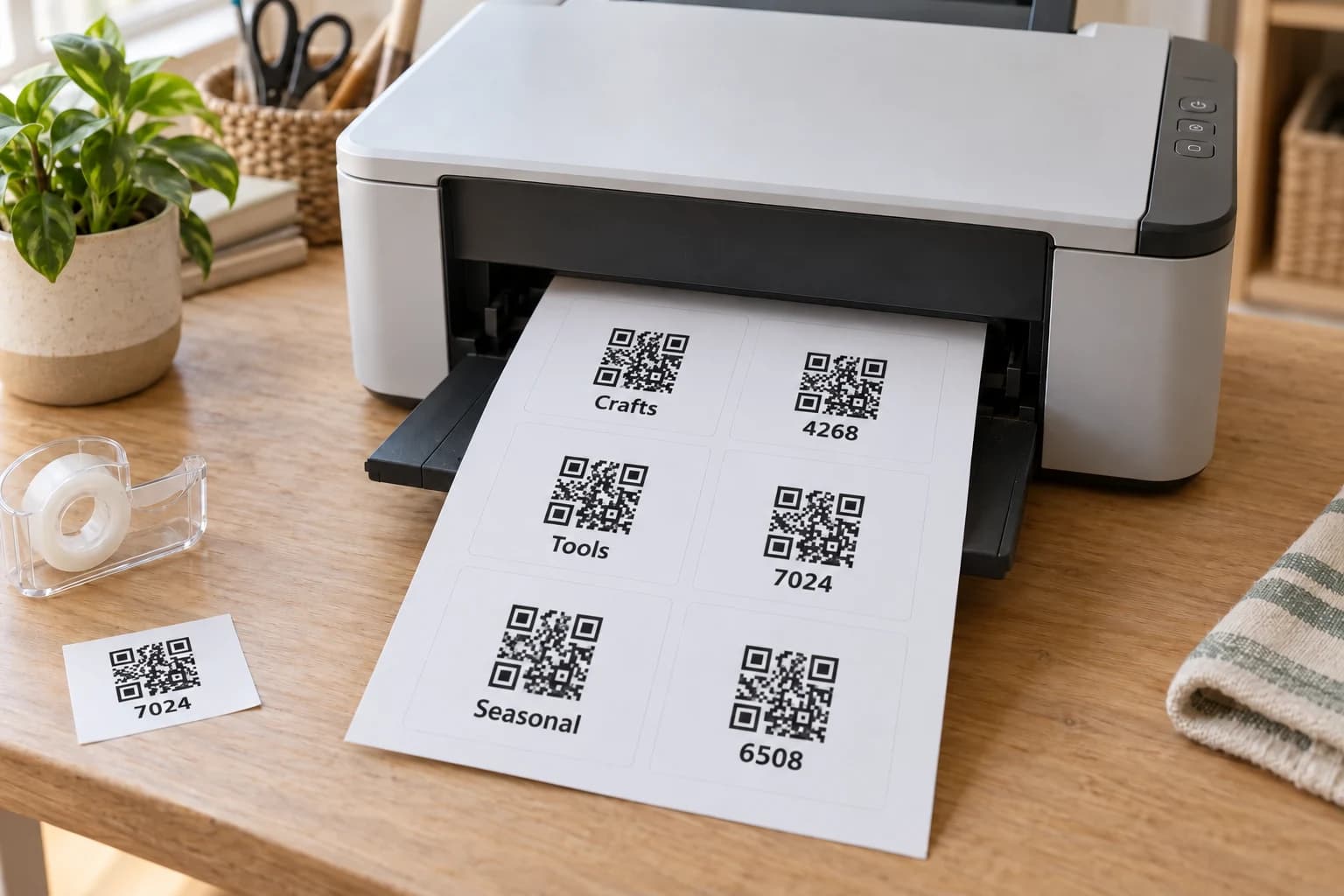
Use Binly labels to connect a physical place to its saved record. Create a label sheet, print and attach a QR code, then scan it and assign the destination if needed. NFC links offer a tap shortcut with compatible tags, while label boards collect several place shortcuts on one printable page.
This guide is for anyone tired of opening similar boxes or browsing for a place while standing beside it. You will choose a shortcut, connect it to the right record, and test its access.
When are labels more useful than search?
Labels help when you are already beside the storage and want to see its saved contents. Search helps when you know the item but do not know which place to visit.
For a worked example, six similar totes sit on a garage rack. A label on Blue Bin opens that place's record without requiring you to remember its exact name. A board near the door can offer shortcuts to several places before you reach the rack.
How do I print and connect a QR label?
Create a sheet using a template that fits your paper or label stock, then test one code before printing a larger batch. An unassigned code needs a destination before it becomes a useful shortcut.
- Open Labels and start a label sheet. Select the template and number of labels.
- Choose whether to show label text and select the naming option you want.
- Create the labels and open the generated PDF. Saved PDFs lets you return to generated sheets.
- Print a test page. Check scale and alignment before using label stock; use the available top and left offsets if the print needs adjustment.
- Attach a label where it stays visible. Scan it, follow the assignment screen if it is unassigned, and choose the intended record.
- Scan again and confirm both the destination and the access someone else would receive.
A place label stays useful as contents change, provided you update the saved contents. It does not sense items entering or leaving the container.
How do NFC links and label boards work?
NFC links provide URLs you can program onto compatible NFC stickers; label boards put multiple place links on a printable page. Choose based on how you want to approach the storage.
- NFC: choose Create NFC Links, generate the batch, and copy the links or download the CSV. Program the URLs onto your stickers using a compatible NFC writing tool; generating links alone does not write the tags.
- Label board: choose the places, page width and height, and column count. Print the resulting layout for a central reference point.
Test a programmed tag on the phone you intend to use. For a board, check that each printed code is large enough to scan comfortably at its intended distance.
What is the value over a handwritten contents label?
A linked label opens the record you maintain in Binly, so its printed text does not need to list every current item. Handwritten labels remain a good choice when a short, stable description is enough and you want no phone involved.
| Method | Best fit | Requirement |
|---|---|---|
| Handwritten label | Simple contents that rarely change | Rewrite when the description becomes wrong |
| QR label | Opening a changing photo or item list | Readable code, phone, and permitted access |
| NFC link | Tapping a nearby tag | Programmed compatible tag and phone |
| Label board | Browsing several places from one point | Accurate selected places and printable layout |
Why does a scan open the wrong place or ask me to sign in?
Check the code's assignment and the destination's access settings. The printed code is a shortcut, not permission to view a private record.
- Wrong destination: inspect Linked Codes and correct the assignment rather than renaming an unrelated place.
- Sign-in prompt: the destination may require authenticated access.
- Unreadable print: check size, contrast, glare, damage, and printer scaling.
- Old contents: update the place photo or items; reprinting the same code will not refresh the record.
Read the sharing guide before distributing a label or board.
What are the most common questions?
These answers cover the practical choices you can make before expanding your setup.
Do I need labels to use Binly?
No, photos, places, and search work without them. Add labels where scanning would make repeated access easier.
Can I print on plain paper?
Yes, choose a suitable layout and attach the printed code securely. Keep it readable and avoid covering it with material that creates strong glare.
Does creating an NFC link program my sticker?
No, Binly generates links for programming. Use a compatible NFC writing tool to store a link on the sticker, then test it.
Can someone else scan a private place label?
They can follow the code, but private records still require appropriate access. Use an invitation or a deliberately configured read-only link when you want another person to view the contents.
Does a label track a box when it moves?
No, QR codes and NFC links do not provide GPS tracking. Update the place's saved location when you move the box.
For current plans and limits, see Binly pricing.
What should I do next?
Print or program one shortcut, attach it to a frequently opened place, and test both its destination and access before making more.
Start with one placeKeep reading: How to share Binly inventories and read-only links.