How to Use Binly · 4 min read
How to use Binly Review and item reminders
Open Tools and choose Review to find places needing a check, items with reached dates, and belongings still checked out. Filter by reason or inventory, inspect the physical item or place, and update its record. Configure notification timing separately in Preferences; opening a record alone does not resolve its review reason.
This guide is for keeping useful records accurate without rechecking your entire inventory. You will learn what brings something into Review and which action resolves each kind of follow-up.
What appears in the Review list?
Review gathers active places and items with supported follow-up reasons. Each record can have more than one reason, so resolving one does not necessarily remove it from the list.
- Place review: a place is marked as needing review or its review interval has passed since the last review or creation.
- Item dates: an expiration, reminder, or warranty expiration date has been reached.
- Still checked out: an item appears immediately while checked out.
- Recently Viewed: a separate filter shows places and items opened in the past 30 days, including recorded shared or public views.
Recently Viewed is a way to revisit records; a recent view does not itself mean an item is overdue. Archived records stay out of Review.
How do I review a place or resolve an item reminder?
Inspect what the record describes, then update the relevant state or date. Simply opening the record is not a substitute for completing the check.
- Open Tools → Review.
- Choose a Review reason and Inventory, or search for a particular name.
- For a place, open it and compare its saved contents with the physical storage. Correct moved items or outdated photos.
- Use the place's Review action and Looks Good when the record accurately reflects the contents.
- For an item date, complete the real-world task and edit or remove the relevant date. For a returned item, use Check In.
- Recheck the remaining reasons if the record still appears.
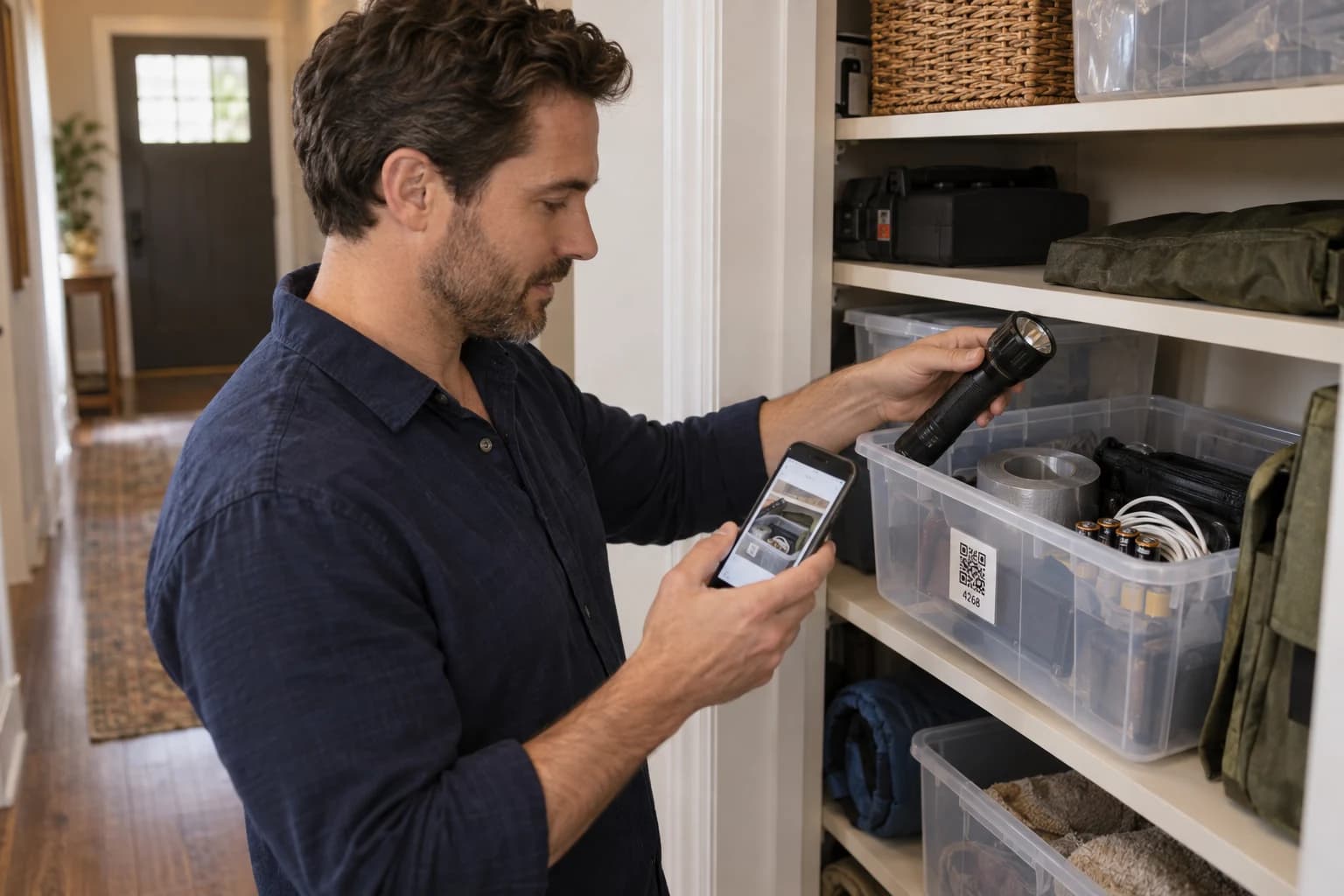
In a worked example, inspect the flashlight and batteries in an emergency-supplies bin, refresh an outdated photo, and then confirm the place review. A warranty reminder on a different item remains a separate task.
How do I set reminder timing and notifications?
Set applicable dates on item records and configure delivery and timing in Preferences → Notifications. The Review list and notification delivery serve different purposes.
Choose the notification types and intervals you want and save the settings. If several place-review intervals are selected, the shortest determines when a place becomes due. Item date notifications can be configured before the date even though Review uses the reached date.
Checked-out items appear in Review immediately; checkout alert intervals determine reminders, not whether the item is listed. Available notification features depend on account eligibility. Checkout tracking has its own workflow.
Why use Review instead of a separate calendar or spreadsheet?
Review connects the follow-up directly to the place or item record, including its photo and location. A calendar remains useful for appointments and time-specific plans, while a spreadsheet can support custom schedules.
| Method | Useful for | What to maintain |
|---|---|---|
| Binly Review | Following up on saved belongings and places | Dates, status, and completed reviews |
| Calendar | Scheduling a task at a particular time | Task description and links to belongings |
| Spreadsheet | Custom planning and calculations | Reminder process and record references |
Use Review when the object is the starting point. Keep a calendar event too if the task needs a specific appointment that the inventory record does not schedule.
Why does a record still need review after I open it?
Opening a record records a visit, but does not confirm contents, remove an old date, or return a checked-out item. Resolve the specific reason shown on the record.
- Place still due: complete its Review action after checking it.
- Date still reached: update or remove the correct field after completing the task.
- Several reasons: handle each one that applies.
- No notification: inspect delivery settings, selected intervals, and account eligibility separately.
- Bulk action: check its filtered scope; matching editable records can include more than those currently visible.
What are the most common questions?
These answers cover the practical choices you can make before expanding your setup.
Does disabling email clear Review?
No, email delivery settings control messages. Review still reflects the supported dates, place review state, and checkout status.
Does a checked-out item wait for an alert interval?
No, it appears in Review immediately while checked out. Alert intervals control reminders rather than its presence in the list.
Can I edit records directly from Review?
Editable records offer an Edit action alongside Open. Read-only records still require someone with editing access to make changes.
What does Recently Viewed mean?
It lists places and items with recorded views in the past 30 days, with latest views first. It is not a declaration that those records need maintenance.
Can I resolve several reminders together?
Some reason filters offer bulk actions such as marking places reviewed, removing reminders, or checking items in. Verify the full filtered scope and actual completion of the tasks before applying them.
For current plans and limits, see Binly pricing.
What should I do next?
Open Review, choose one reason, and resolve one record after checking the real item or place. Then choose notification intervals that match the follow-up you actually want.
Start with one placeKeep reading: How to check items in and out in Binly.