How to Use Binly · 3 min read
How to search Binly and find your belongings
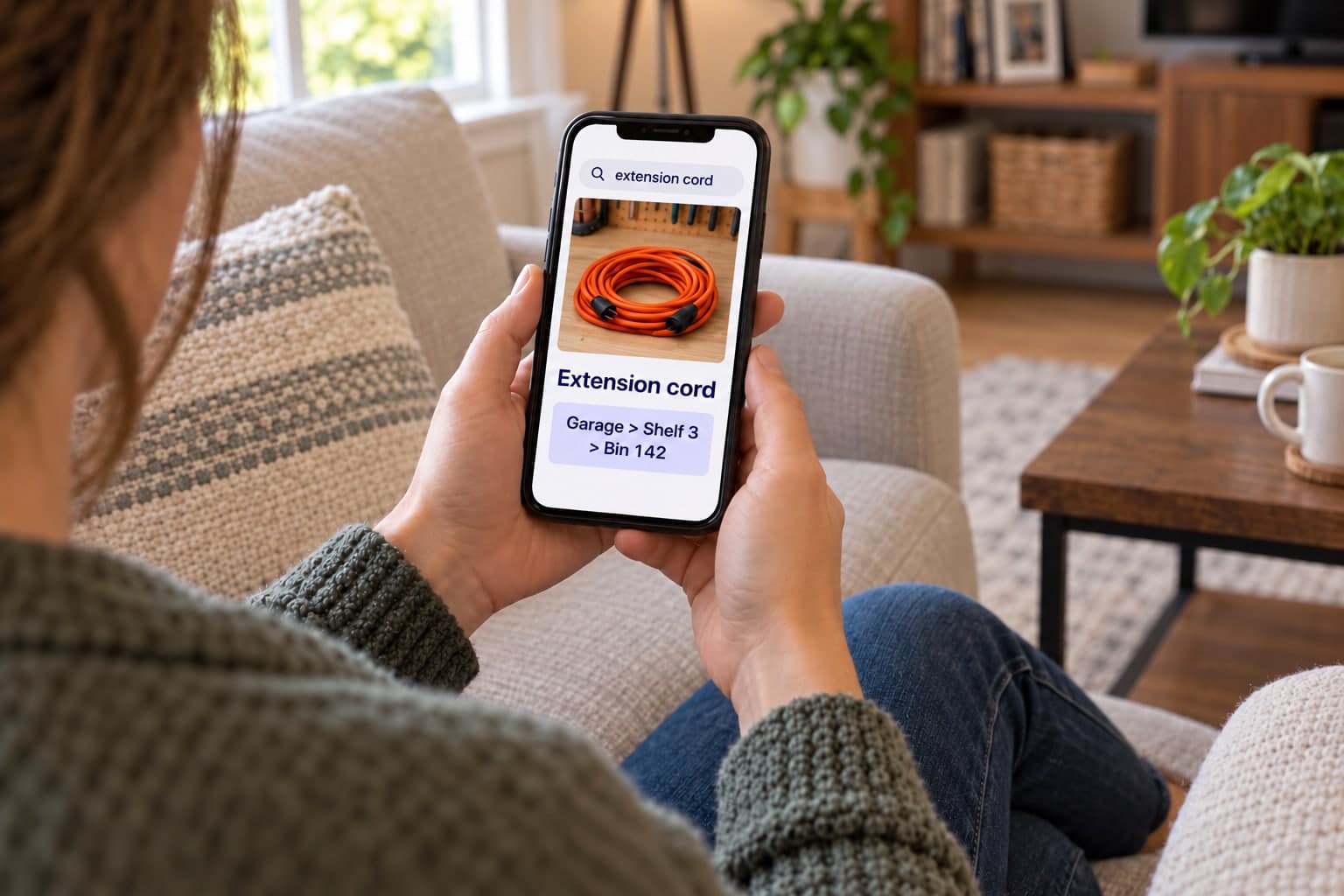
Search Binly with a word from an item's name, description, tags, or other saved details. Open a matching result, use its photo to confirm the belonging, and follow the place path to its recorded location. If nothing matches, simplify the search and check whether the item was saved or archived.
This guide is for anyone asking where they put something or whether they already own it. You will learn a repeatable way to move from a remembered detail to the physical storage spot.
When is search more useful than browsing places?
Search is useful when you remember the belonging but not its location. Browse places when you know the drawer or want to inspect several items stored together.
Try a distinctive noun such as lantern, or a saved brand or model when similar items exist. Recently Added and Checked Out quick filters help when timing or availability is the clue you remember.
How do I find an item from a keyword?
Start with a short keyword, inspect the relevant result type, and confirm the location on the record. A search result is a route to the saved information, not proof that the object has stayed there.
- Open Search from the app navigation and enter a useful word such as extension cord.
- Review the results and use the inventory, place, or item type filters if needed.
- Open the likely result and compare its photo and details with the belonging you want.
- Follow the inventory and full place path to the physical spot.
- If you move the item permanently, edit its place so the next search stays useful.
For a worked example, two cord results might have different photos and places. Choose the orange outdoor cord in Home → Garage → Shelf 3 → Blue Bin rather than a short cable in the desk drawer.
How should I name items so I can find them later?
Use the words you would naturally type, plus one distinguishing detail when needed. A recognizable name is more useful than an elaborate description you would never remember.
- Useful: orange extension cord, tent repair kit, cordless drill.
- Too vague: stuff, assorted things, photo 12.
- Useful extra details: a saved model number, a size you need, or a consistent project tag.
Check suggested names after AI photo capture. If an object appears only in a place photo, browse that photo or create a named item for individual searches.
What does Binly search add over notes or a photo album?
Binly combines searchable records with photos and their place paths. Notes can answer a simple location question, while an album is useful for recognition; both depend on how consistently you add and maintain location information.
| Method | Strong point | What you maintain |
|---|---|---|
| Binly search | Open a photo and its structured location together | Names, details, and current places |
| Text note | A quick reminder for a few belongings | Location wording and any links to photos |
| Photo album | Visual browsing of captured contents | Which photo belongs to which current location |
For a handful of rarely moved objects, a note may be sufficient. Binly becomes more useful when the number of places, similar objects, or people makes recall harder.
What should I check when search returns nothing?
First confirm that an accessible, active record exists with the words you are searching. Pending captures, archive status, access changes, and overly narrow filters can all explain a missing result.
- Clear quick filters and try one shorter word.
- Check Inbox and Quick Add Queue for unfinished capture.
- Browse the known place if you saved only a contents photo.
- Check Archive for a record removed from active views.
- For shared belongings, confirm that the owner still grants access to the inventory.
What are the most common questions?
These answers cover the practical choices you can make before expanding your setup.
Does search look inside every photo automatically?
Do not rely on a place photo to create searchable records for every visible object. Add names manually or finish AI item creation for belongings you want to find individually.
Can I find items someone shared with me?
Search can include records in inventories you have access to. If access is removed, those shared records are no longer available to you through search.
Does a result show an item's live physical position?
No, it shows the saved location. Update the place when an item moves, or use checkout tracking for a temporary absence.
Can I search before buying another item?
Yes, look up the item name or useful saved details to check your existing records. Verify quantity and condition before deciding that the saved item meets your needs.
What if I recognize the photo but not the name?
Browse the likely place and open the matching photo. Rename the item using words you would search next time.
For current plans and limits, see Binly pricing.
What should I do next?
Search for a belonging you have already saved, confirm its photo, and follow the location path. Correct one unclear name or outdated place while you are there.
Start with one placeKeep reading: How to set up inventories and places in Binly.