How to Use Binly · 4 min read
How to import and export inventory CSV files in Binly
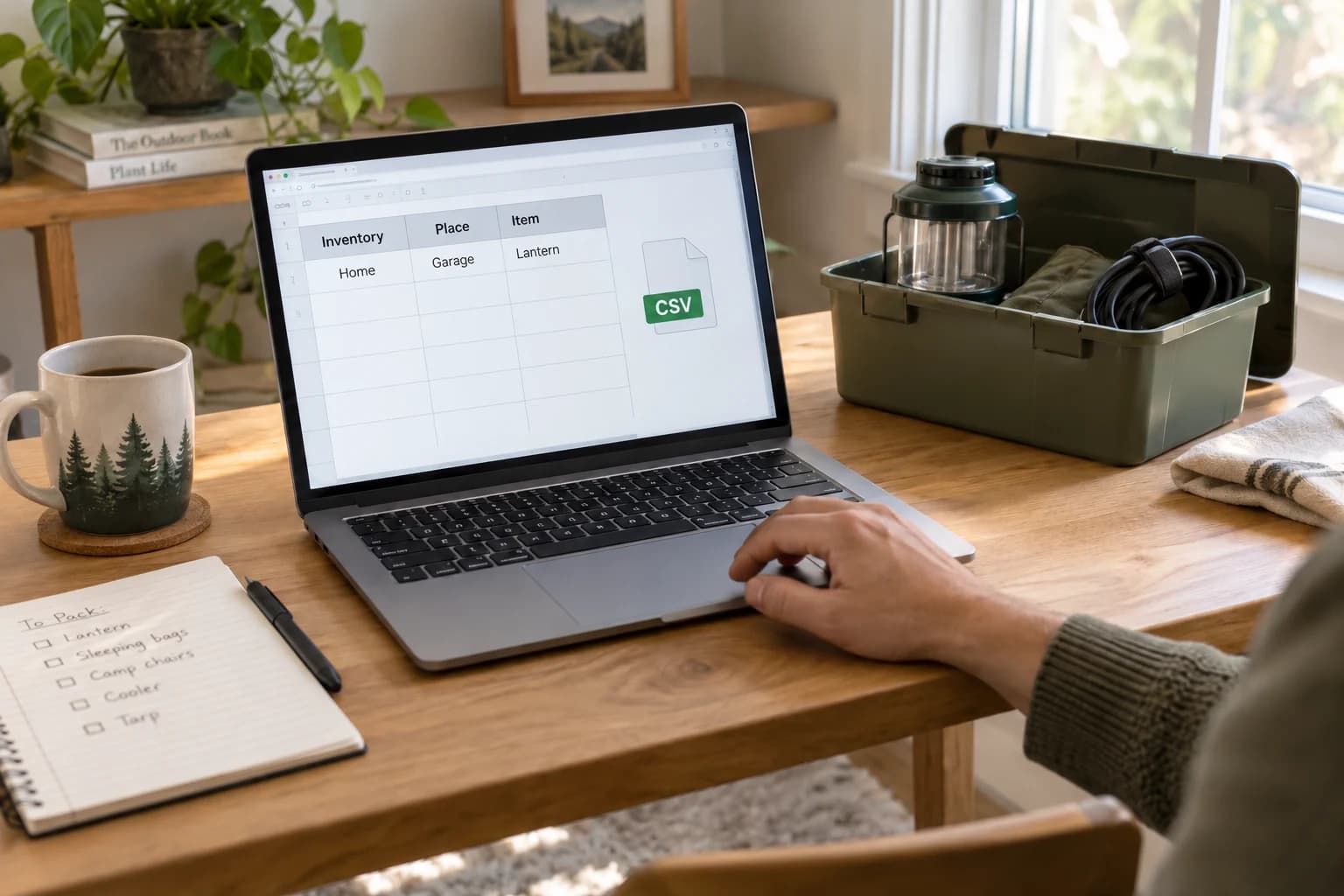
Use Tools → Import to download Binly's CSV template, map your existing list to its columns, and review the uploaded file before confirming the import. Use Tools → Export to download item records as CSV when your plan supports it. Keep original files and inspect results before relying on the transferred data.
This guide is for people moving an existing list into Binly or working with their records in a spreadsheet. You will learn the required columns, common import problems, and what an export does and does not preserve.
When should I import a CSV instead of adding items manually?
Import is useful when you already have structured item data with names and locations. Manual entry or Quick Add is often easier when your starting point is a pile of belongings or photos without a usable list.
CSV is a text-based table, not a bundle of pictures and files. Images and attachments use supported URL columns, so their sources must be downloadable for the importer to retrieve them.
How do I prepare and import my item list?
Start with Binly's template and import a small representative sample first. The preview and completion results are part of the workflow, not steps to skip.
- Open Tools → Import and choose Download Template.
- Fill the required
inventory_name,place_name, anditem_namecolumns for each row. - Add supported optional fields. Use
parent_place_namefor the parent hierarchy, with>between nested levels. - Save as CSV, upload it, and review errors, ignored columns, and other warnings.
- Correct the file or preview as needed, then confirm the import.
- Watch the import task's completion results and inspect created items, places, images, and attachments.
In a worked example, use inventory Home, parent place Garage > Shelf 3, place Blue Bin, and item Orange extension cord. Check that the imported record opens with that route before processing the rest of a storage list.
How do I export my Binly records to a spreadsheet?
Open Tools → Export and choose Export Items CSV when you have items and export access. Downloading the file does not remove records from Binly.
- Check that the relevant records and locations are up to date.
- Open Export and start the CSV download.
- Open the file in your spreadsheet app and inspect column names and a few sample rows.
- Keep the original download before making transformations for another system.
The export provides item data and file references, not a complete account restore package. It does not bundle every referenced image or attachment into an offline archive; retain separate copies of documents you need independently.
What is the value over keeping everything in a spreadsheet?
Import lets you reuse existing data while gaining Binly's photos, place paths, and item workflows. Export lets you work with tabular data outside Binly when calculations or another format would help.
| Approach | Good fit | Tradeoff |
|---|---|---|
| Binly records | Finding and maintaining physical belongings | Supported fields and workflows define the structure |
| Spreadsheet | Custom formulas and comparisons | You design location, file, and sharing conventions |
| CSV transfer | Moving structured data between tools | Check field compatibility and file references |
For a printable curated list instead of a data transfer, use a collection PDF.
What import problems should I check for?
Review warnings and row-level results before retrying the whole file. A partly successful task needs a different correction from one that imported nothing.
- Missing names: every row needs inventory, place, and item names.
- Ignored columns: unsupported columns do not automatically become saved fields.
- Custom fields: the combined exported custom-field-values column is ignored on import; use supported separate custom field columns.
- Missing images: confirm that URLs are downloadable rather than private viewer pages.
- Privacy warning: when the plan does not allow sharing, public records can be imported as private.
- Retry uncertainty: inspect completed rows before reimporting; do not assume every CSV operation is a perfect duplicate-free round trip.
What are the most common questions?
These answers cover the practical choices you can make before expanding your setup.
Can I upload an Excel workbook directly?
This workflow uses CSV files. Save or export the relevant worksheet as CSV, then check it against Binly's template.
Are image files stored inside the CSV?
No, supported columns contain image or attachment references. Import needs downloadable URLs, and an export is not a bundled archive of those files.
Why is Export unavailable?
Check whether your plan includes export and whether you have at least one item. The Export screen explains the applicable restriction.
Will every exported column import unchanged?
No, import supports a defined set of columns and reports unsupported ones. Review the preview, especially custom fields and privacy behavior, before confirming.
Does exporting delete or move items?
No, it downloads a CSV copy of records. Changes made in your spreadsheet do not automatically update Binly.
For current plans and limits, see Binly pricing.
What should I do next?
Download the template and try a small sample with one nested place and a few items. Verify the results before importing your full list.
Start with one placeKeep reading: How to save item details, receipts, and manuals in Binly.