How to Use Binly · 3 min read
How to scan product barcodes in Binly
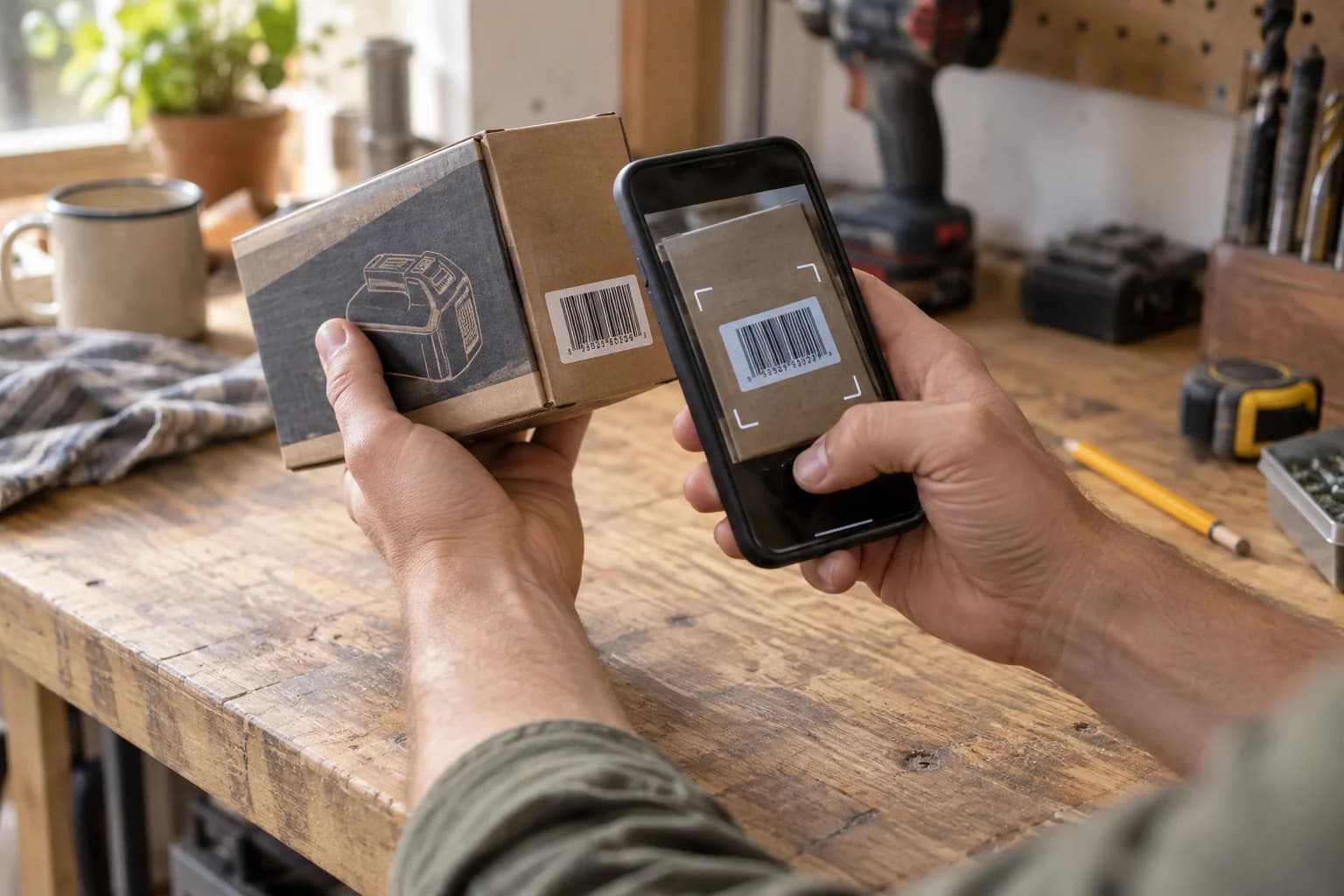
Open Binly's Scanner and scan a barcode with the camera, or type its value and continue. A recognized linked code opens its record. For an unmatched product barcode, review any available product information, choose a place to create an item, or link the barcode to an existing record.
This guide is for adding packaged products or reusing codes already on your belongings. You will learn when a barcode can save typing and when a photo or manual record is a better starting point.
When should I use a product barcode?
Use a product barcode when an object has a readable commercial code and identifying its product would help fill in a record. Use a photo or manual entry for handmade objects, loose parts, and products with missing or unhelpful codes.
A barcode can identify a product model without identifying your particular physical copy. Record a serial number or distinguishing photo separately when two identical tools need different records.
How do I scan or enter a barcode?
Use the camera for a visible code or the Scanner input when you already have its characters. Review the result before creating another item.
- Open Scanner or the camera shortcut in the app navigation.
- Allow camera access if using the camera, and hold the code clearly in view. Alternatively, enter it in Scan or enter barcode and choose Continue.
- If a linked record opens, check that it is the one you wanted.
- For an unmatched product code, inspect any returned product details and select the destination place.
- Choose Add item to selected place, or use the option to link the barcode to an existing record.
- Open the saved item and correct its name, photo, or details where needed.
A handheld scanner that enters text can use the focused barcode input. Keep the input selected so the scanned characters go to the intended field.
How would I add a boxed tool without making a duplicate?
Search for the tool first, then decide whether to link its barcode or create a new item. This keeps a product lookup from becoming a second record of the same belonging.
In a worked example, a cordless drill already has a photo in Garage → Workbench Drawer. Scan the packaging and link the barcode to that existing record. If this is a newly acquired drill, create its record in the drawer where you will actually keep it and add a distinguishing detail.
The item details guide explains where receipts, model numbers, and warranty information fit.
What does barcode lookup add over typing or AI photos?
Barcode lookup is useful for an exact printed product identifier; photos help recognize the actual belonging. Manual entry is often clearest when you already know the name you want to search.
| Method | Useful input | Check afterward |
|---|---|---|
| Product barcode | A readable product code | Correct product and physical copy |
| AI photo capture | A clear view of the object | Suggested names and missing objects |
| Manual entry | Your own knowledge | Searchable wording and current place |
A barcode lookup does not tell Binly where the product is stored. You still choose its place and maintain its details.
What if the barcode is not recognized?
An unrecognized code does not prevent you from recording the item. Enter or correct the details manually, or use photo capture if that is easier.
- Camera unavailable: check browser camera permission or type the code.
- Code will not scan: improve lighting, reduce glare, flatten the label, or enter its value.
- No product details: use the available placeholder/manual entry flow and supply a useful name.
- Wrong existing record: inspect the link before adding another copy.
What are the most common questions?
These answers cover the practical choices you can make before expanding your setup.
Is every product barcode supported?
No, a scan may return no product information or incomplete information. You can still enter the item details yourself.
Can I use Scanner without camera permission?
Yes, type the code into the Scanner input and continue. A compatible handheld scanner can also enter characters into that focused field.
Is a product barcode the same as a Binly place label?
No, a product barcode usually identifies a product, while a Binly place label opens an assigned storage record. Use place labels when your main question is what is in this box.
Will scanning count how many copies I own?
Do not treat scanning as an automatic physical count. Check and update the item's quantity yourself when quantity tracking is enabled.
Can I add an item without any barcode?
Yes, add a photo and name manually or use Quick Add. A barcode is an optional shortcut rather than a requirement.
For current plans and limits, see Binly pricing.
What should I do next?
Try one readable product barcode, check for an existing item, and verify the saved name and place before scanning a batch.
Start with one placeKeep reading: How to save item details, receipts, and manuals in Binly.