How to Use Binly · 3 min read
How to check items in and out in Binly
Enable Check In/Out Tracking in Preferences if it is hidden, then open an item and choose Check Out when it leaves its usual place temporarily. Use Check In when it returns. The item keeps its normal place, while its availability and Review entry show that it is still out.
This guide is for tools, project supplies, and other belongings that leave storage and should come back. You will distinguish a temporary absence from a permanent location change and keep the return state useful.
When should I check an item out instead of moving it?
Check an item out when you expect it to return to its usual place. Change its place when its new storage location should become the normal answer to where it is.
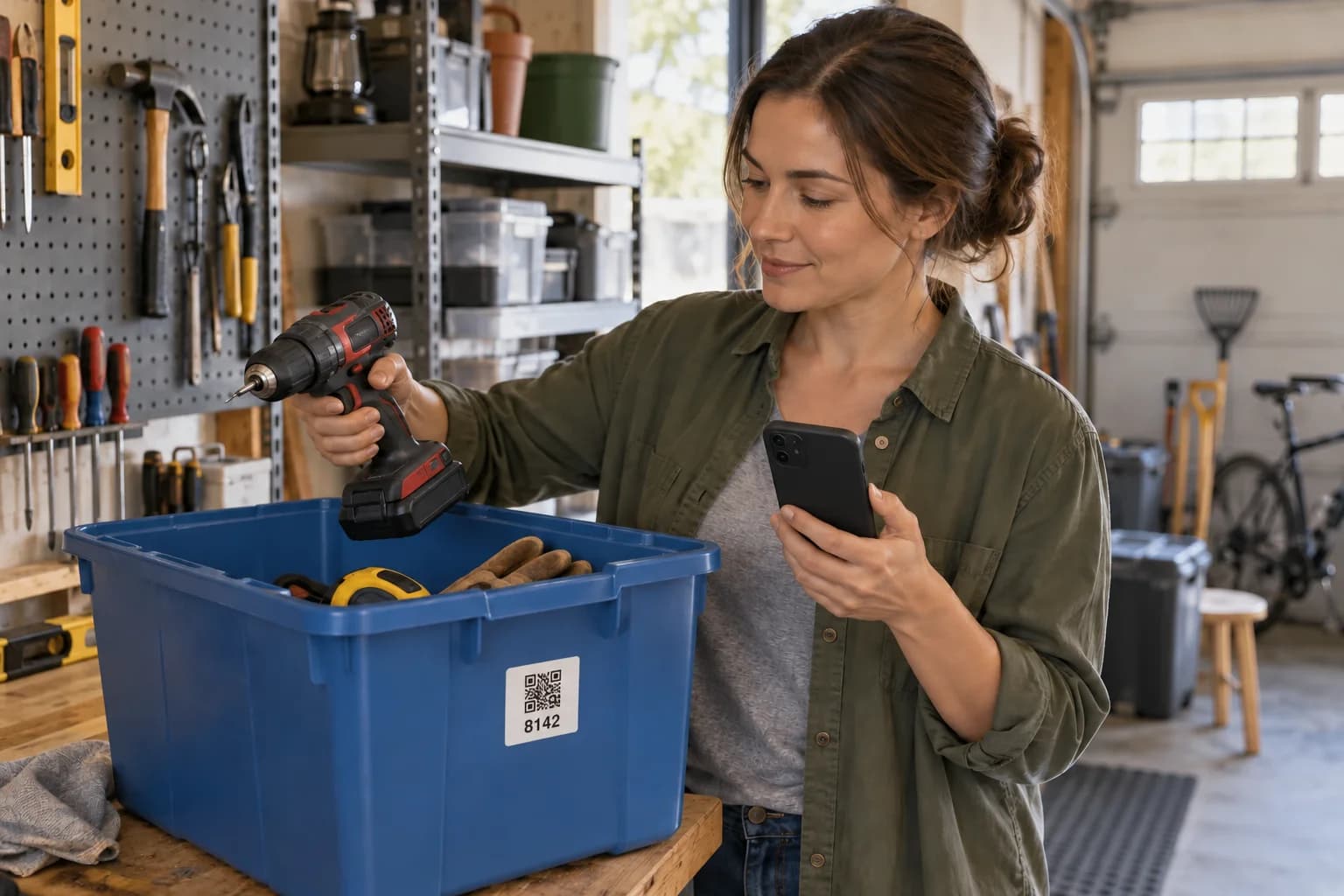
In a worked example, a drill leaves Workbench Drawer for a weekend project. Check it out so its normal home stays Workbench Drawer while the record shows it is away. If you permanently relocate it to the van, update its place instead.
Checkout is a recorded status, not a sensor. Binly cannot know that the drill came back unless someone records the return.
How do I check out and return an item?
Use the item's Availability control and verify that its state changes after saving. You need editing access to update the record.
- If the controls are hidden, open Preferences → Data Fields and enable Check In/Out Tracking.
- Search for the item or open it from its place.
- Choose Check Out when taking it away temporarily.
- Find outstanding items with the Checked Out search filter or Review's Still checked out reason.
- After returning the object, open its record and choose Check In.
- Verify its availability and, if it has a new permanent home, update the place separately.
For shared equipment, agree that the person taking or returning an item updates the record. Editor invitations let appropriate collaborators maintain the inventory.
How do I find items that have not come back?
Use the Checked Out search filter or Tools → Review → Still checked out. Items appear in Review immediately while out, independently of reminder timing.
Configure Check In/Out Alert intervals and delivery in Notifications preferences when available for your account. A reminder prompts you to check the situation; it does not establish that an object is physically missing or automatically mark it returned.
If an item appears for another review reason after you check it in, inspect that reason separately. The Review guide explains dates and notification timing.
What does checkout tracking add over a note or group message?
Checkout tracking keeps the away/returned state beside the item's photo and normal location. A note or message can explain a one-time loan, but you must remember to find and reconcile it later.
| Method | Good fit | Tradeoff |
|---|---|---|
| Binly checkout | Repeated temporary use of saved belongings | Someone must record departure and return |
| Group message | Discussing who needs an item and why | The current state can be buried in conversation |
| Paper sign-out list | A single physical handoff point | The list stays at that location |
Keep any necessary loan details in an appropriate note or item description. Do not assume the checkout button by itself captures a borrower agreement or tracks the object's live position.
What mistakes make checkout status unreliable?
The main failure is changing the status without matching the physical event. Check in only after confirming the return, and check out when the item actually leaves its usual place.
- Control missing: check Data Fields and editing permissions.
- Item still listed as out: save Check In rather than just opening the record.
- Several distinct copies: use separate records when each needs an independent checkout state.
- Everything marked returned: review the scope before using Check All In from Review.
What are the most common questions?
These answers cover the practical choices you can make before expanding your setup.
Does Check Out change the item's place?
No, it preserves the normal place while recording that the item is out. Edit the place separately for a permanent move.
Does Binly detect a return automatically?
No, someone needs to confirm the return. Use Check In after checking that the item is back.
Can a read-only visitor check an item in?
No, read-only access does not allow changes to the item. Use an account with appropriate editing access.
Can I track individual copies using one quantity field?
A quantity field alone does not give each physical copy an independent record. Use separate items when different copies need their own locations or checkout status.
Do I need notifications to see outstanding items?
No, the Checked Out filter and Review show the saved state. Notification delivery is a separate preference and eligibility check.
For current plans and limits, see Binly pricing.
What should I do next?
Choose one item that regularly leaves storage, check it out during its next use, and check it in when you physically return it.
Start with one placeKeep reading: How to use Binly Review and item reminders.