How to Use Binly · 4 min read
How to set up inventories and places in Binly
Create an inventory for a broad space, then add places that match the physical spots where you keep things. Nest a drawer, shelf, or box under a parent place when that makes the route clearer. Save belongings in their actual places, and update those locations when things move.
This guide is for anyone starting a home, hobby, or shared storage record. You will build a location structure that helps someone walk to the right spot without needing to understand a filing system.
What is the difference between an inventory, a place, and an item?
An inventory is the broad container for your records, a place is a physical storage spot, and an item is a belonging recorded there. A place can contain smaller places as well as items.
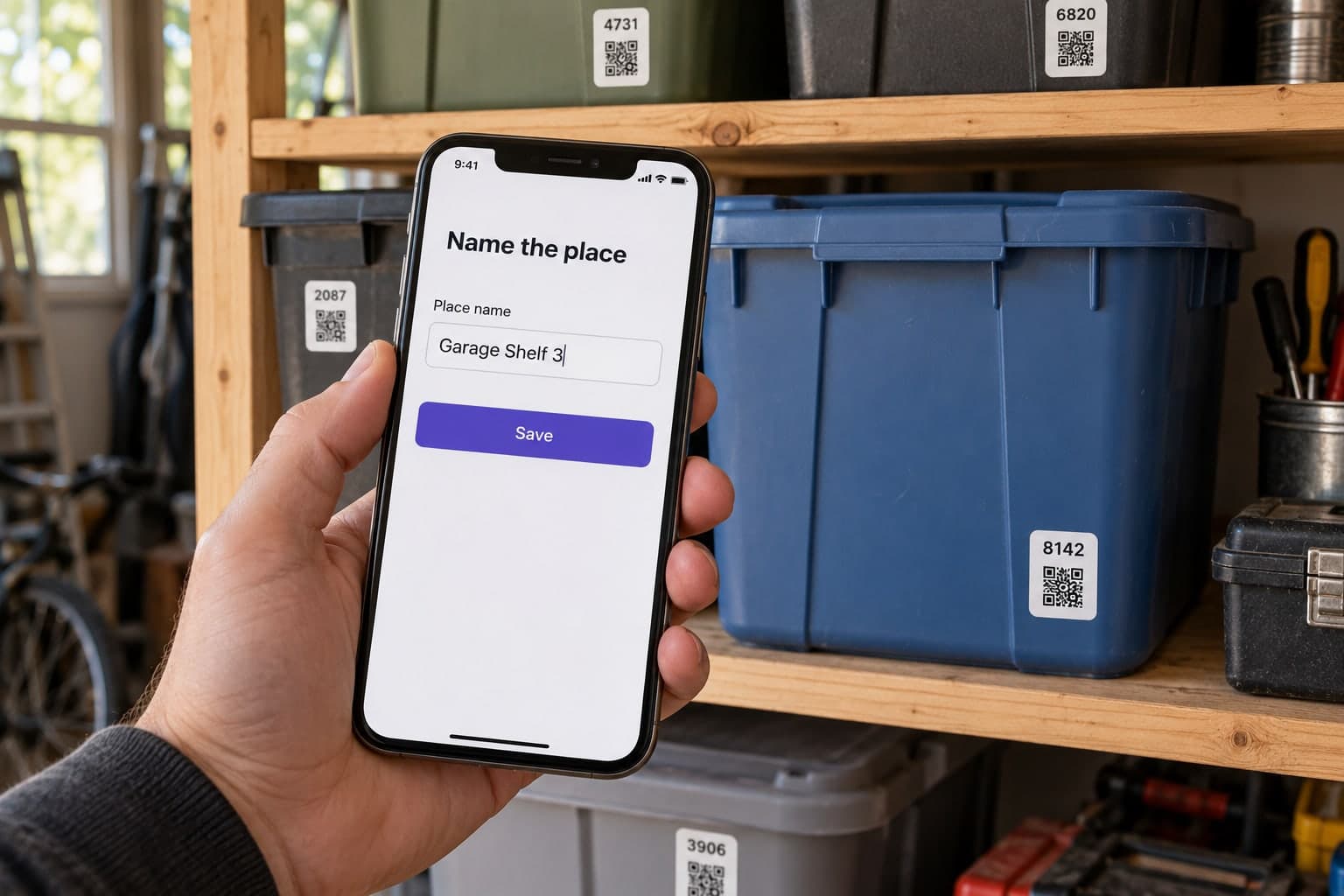
For a worked example, Home is the inventory; Garage, Shelf 3, and Blue Bin are nested places; an orange extension cord is an item in Blue Bin. Each level adds a useful physical direction.
When should I create another inventory or a nested place?
Create another inventory when you need a separate broad space or sharing boundary. Add a nested place when a smaller physical location helps distinguish where something lives.
- Home and Workshop can be separate inventories if different people need access.
- A drawer inside a cabinet usually fits as a nested place.
- A single small closet can remain one place if a photo is enough to find its contents.
More levels are useful only if they shorten the physical search. Do not build a room-by-room hierarchy before recording your first useful photo.
How do I create a location path in Binly?
Start with the broad space and add smaller places inside it. Use names that you or another person could recognize while standing in the room.
- Open Inventories, choose Add Inventory, enter Home, and save.
- Open Home and choose Add Place. Name it Garage and save.
- Add Shelf 3, selecting Garage as its Parent Place.
- Add Blue Bin under Shelf 3. Include a recognizable photo or short description if nearby containers look alike.
- Add an item to Blue Bin, then open that item and check that the displayed path matches the physical route.
With multiple inventories, check the Inventory selection before saving a place. Use Quick Add when you are ready to photograph the contents.
Why use places instead of category folders?
Places answer where to look, even when unrelated things share a container. Category folders answer what kind of thing something is, but may still leave you guessing which shelf holds it.
| Approach | Useful for | Tradeoff |
|---|---|---|
| Physical place path | Walking to a particular drawer or box | Must change when the location changes |
| Category folders | Browsing similar belongings | Mixed containers do not fit neatly into one category |
| Place plus tags | Finding a location and grouping related items | Tags need consistent names |
You can keep the cord beside paint rollers and still tag it Electrical. Read the location versus category guide for the broader storage decision.
What mistakes make locations harder to follow?
Vague names and outdated paths make a record less useful than its photo suggests. Correct the location before adding more descriptive detail.
- Two places called Box: add a visible identifier such as Blue Bin or Box 14.
- A category used as a place: replace Tools with the actual spot, such as Workbench Left Drawer, if Tools does not identify a location.
- A moved container: move the existing place rather than creating a duplicate. For several records, use Bulk Manage.
- Too many levels: keep only distinctions that help someone find the storage spot.
What are the most common questions?
These answers cover the practical choices you can make before expanding your setup.
Can a place be something other than a bin?
Yes, a place can be a shelf, drawer, room, cabinet, or other physical spot. Use the name that helps you recognize it in real life.
Do I need a place for every individual item?
No, several items can share one place. Create another place only when the smaller location adds useful directions.
Can I start without naming every belonging?
Yes, save a place photo for visual reference. Add named items when you want to retrieve individual belongings through keyword search.
Will moving an item physically update its record?
No, Binly does not detect physical moves. Update the saved place when an item moves so future searches point to the correct location.
Can I share one inventory without sharing everything?
Yes, authenticated invitations can be scoped to selected inventories. Review the access scope before inviting someone, especially the option covering current and future inventories.
For current plans and limits, see Binly pricing.
What should I do next?
Create one place that matches a real storage spot, add a recognizable photo, and test the path by finding one belonging.
Start with one placeKeep reading: How to use Quick Add, AI photos, and Inbox in Binly.