How to Use Binly · 4 min read
How to search Binly by text message and use checkout texts
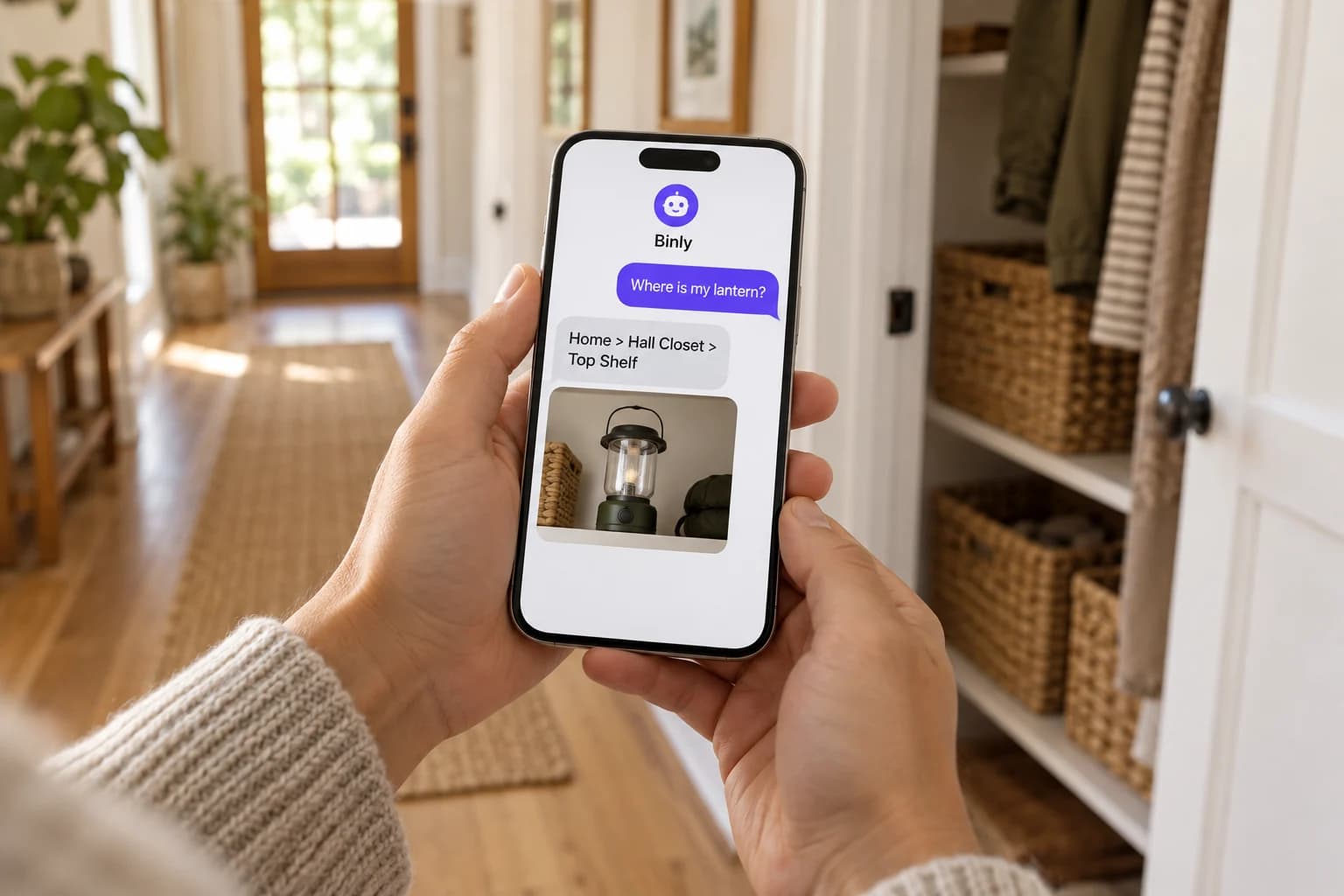
When SMS is available on your account, approve your mobile number in Profile and text Binly the belonging you want to find. Search replies provide matching records and locations. Checkout texts are a separate opt-in and can accept a YES return confirmation. SMS requires paid membership and is awaiting production rollout.
This guide explains the SMS workflow for paid members once it is enabled. It covers searching from a conversation, choosing checkout reminders, and using the app for changes that text messages do not support.
When can I use Binly SMS search?
SMS search and checkout texts are awaiting production rollout and carrier delivery verification. Use this setup guide when SMS becomes available in your account; app Search remains the way to find records now.
SMS requires a current paid membership and an approved mobile number. A free account or free Premium trial does not grant SMS access. Check the Profile screen for availability rather than assuming a plan alone means setup is complete.
Once enabled, SMS can be useful when you want to ask where something is without first navigating the app. It searches saved information; it cannot discover belongings you have never recorded.
How do I approve my phone and start a search?
Use Profile → SMS Search & Notifications to save and approve the phone you will text from. Use the Binly number displayed there rather than a number copied from an old guide.
- Save your mobile number in Profile.
- Choose Enable SMS Search and follow the approval instructions, or text START to the displayed number where instructed.
- Wait for the approval confirmation before searching.
- Text a keyword or question, such as Where is my orange extension cord?
- Inspect the matching photos, links, and saved place paths in the replies.
If the phone previously opted out, reply START or UNSTOP to resume messaging. Saving the number again does not override an opt-out.
How do follow-up messages narrow a search?
Reply with a useful distinguishing detail when Binly asks you to narrow a broad search. A follow-up can refine the active search, while NEW SEARCH starts over.
For a worked example, text Find my tape, then clarify The blue painter's tape in the garage. The expected result is a saved record and its place, not a guess about the contents of unrecorded drawers.
- Ask for up to four independently requested things in one search.
- If more than 15 unique matches are found, Binly asks for details once, then returns up to 15 matches.
- Search context lasts 30 minutes after a successfully understood message.
- Send NEW SEARCH, or NEW SEARCH: camping lantern, to reset the context.
- Ask What items do I have checked out? for a separate complete list, which can arrive across multiple messages.
How do I enable checkout texts and reply to them?
Enable Send SMS Notifications separately in Preferences → Notifications after phone approval. Checkout tracking and selected Check In/Out Alert windows are also needed for those reminders.
When a checkout text asks whether a specific item has returned, reply YES only after confirming that item is back. The reply applies to the active confirmation, which expires after 24 hours; it is not a general instruction to check in any item you name.
Binly keeps one active checkout confirmation per phone and queues others. Use the app if you need to inspect or change several records. The checkout guide explains the underlying item state.
Why use text search instead of opening the app?
Text search lets you ask a retrieval question in a familiar conversation. The app is better when you need to browse many photos, edit details, or inspect a larger set of results.
| Method | Useful for | Limitation |
|---|---|---|
| SMS search | A quick question and a few matching records | Eligibility, approval, delivery, and result limits |
| App Search | Browsing and filtering results | Open the app and sign in as needed |
| A saved personal note | One fixed reminder | Does not query updated inventory records |
What should I check if texts do not work?
Check availability, paid membership, the approved phone, and opt-out status first. SMS consent and checkout notification preferences are separate settings.
- No SMS controls yet: use app Search while rollout is pending.
- Search works but no reminders: check Send SMS Notifications, checkout tracking, and alert windows.
- Wrong search context: start a NEW SEARCH.
- Expired YES reply: open the item and check it in through the app.
- Edit request by text: use the app; general add, edit, move, delete, and checkout commands are not supported.
What are the most common questions?
These answers cover the practical choices you can make before expanding your setup.
Is SMS included in a free trial?
No, SMS requires current paid membership. Availability and phone approval are also required before messaging works.
Can text search find shared items?
It can search owned and shared inventories you currently have access to. Access is checked again before results are delivered.
Can I create an item by texting a photo?
This SMS workflow supports search and the specific checkout confirmation reply. Use Quick Add or the item editor to create records.
How do I stop all Binly texts?
Reply STOP to unsubscribe. To resume messaging later, follow the START or UNSTOP approval instructions.
Can I stop checkout reminders but keep search?
Turn off Send SMS Notifications in Preferences to stop checkout reminders. Approved SMS search can remain enabled separately when your account is eligible.
Will a random YES message check an item in?
A YES reply only applies to a valid active checkout confirmation. Use the app if no confirmation is active or you need to choose a different item.
For current plans and limits, see Binly pricing.
What should I do next?
Use app Search today. When SMS is available in your account, approve your phone and test one specific search before opting into checkout texts.
Start with one placeKeep reading: How to search Binly and find your belongings.