How to Use Binly · 4 min read
How to save item details, receipts, and manuals in Binly
Open an item in Binly and edit the details you will need later, such as its model, quantity, purchase information, or warranty date. Attach receipts, manuals, and other relevant files to that record. Enable optional fields in Preferences when needed, and keep the item's name, photo, and place easy to recognize.
This guide is for belongings that need more than a photo, such as tools, appliances, or project supplies. You will decide which details earn their place and keep those details connected to the physical item.
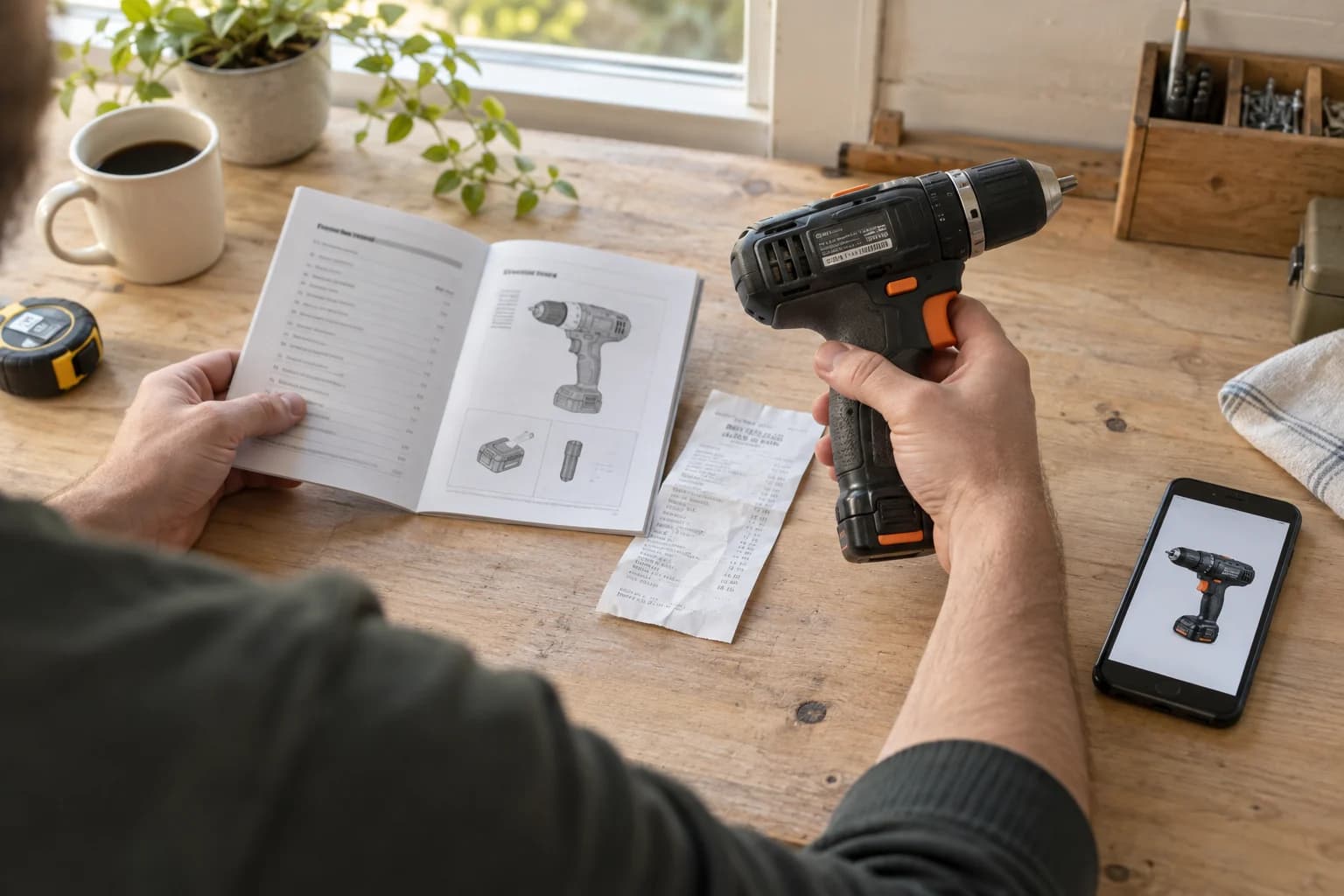
When is extra item detail worth adding?
Add detail when it will answer a future question you can name now. Skip optional fields that would create work without helping you find, use, maintain, or distinguish the belonging.
- Model and serial number: distinguish similar equipment or find the right manual.
- Quantity: record a group of interchangeable supplies when a count is useful.
- Receipt and purchase details: keep the purchase record beside the item.
- Warranty or reminder date: remember a time-sensitive follow-up.
For a basic drawer record, a clear photo and name may be enough. Completeness is not a requirement for a useful inventory.
How do I add details and documents to an item?
Edit the existing item and save relevant fields and attachments there. Check the result rather than creating a second item just to hold a receipt.
- Find and open the item, then use its edit action.
- Confirm the name, description, and place. Add brand, model, or serial information when it helps distinguish the item.
- Add purchase, warranty, expiration, or reminder information that applies.
- Use the relevant file fields for a receipt, manual, warranty document, or other supported attachment.
- Save, reopen the item, and check that the important details and files are accessible.
If an expected optional field is hidden, inspect Preferences → Data Fields. Some fields and capabilities depend on your plan; check Billing or Pricing rather than assuming a missing field is an error.
How should I use quantities and custom fields?
Use quantity for a count you are prepared to maintain and custom fields for repeated details that the standard form does not cover. Custom fields support Text, Long Text, Number, and Date types.
In Preferences, create a custom field with a clear label and suitable type, and organize related fields into groups when useful. For a worked example, a model-making supply record might use a Text field named Paint code and a Number field named Bottle size in ml.
Use separate item records when two objects need separate photos, locations, serial numbers, or checkout states. A quantity of two does not explain which of two different drills is away.
Why keep documents with items instead of in separate folders?
An item record gives a receipt or manual the context of its name, photo, and location. A document folder remains useful for broader filing, but you must remember which file belongs to which physical object.
| Method | Useful for | Tradeoff |
|---|---|---|
| Binly item record | Opening details while viewing the belonging | You maintain the correct item and attachments |
| Document folder | Managing files across many purposes | Names or folders must explain the item connection |
| Spreadsheet | Comparing structured values in rows | Photos, files, and locations need their own conventions |
In a worked example, a drill's record can hold its model number, receipt, and manual while its place points to Workbench Drawer. That lets you start with the object you recognize instead of guessing a downloaded filename.
What details are easy to get wrong?
Check values that change or can be confused between similar products. A detailed record is useful only when the details still describe the right belonging.
- Stale quantity: adjust the count after using or adding supplies; Binly does not count them physically.
- Wrong manual: compare its model with the item's saved model.
- Expired reminder: update or remove the date after handling it. See Review and reminders.
- Assumed PDF bundle: collection PDFs do not embed attached documents; keep access to the original files.
What are the most common questions?
These answers cover the practical choices you can make before expanding your setup.
Do I need to fill in every field?
No, add only information that helps you use or find the item. A name, photo, and accurate place are a useful starting point.
Why can I not see quantity controls?
Check whether quantity tracking is enabled in Preferences → Data Fields. Available controls also depend on your access to the record.
Can I record my own specialized details?
Yes, use custom fields for details that do not fit the standard form. Choose a consistent label and type so the information remains understandable across items.
Does entering a value create an appraisal?
No, a value you enter is your saved record. It does not independently verify the item's condition or establish a professional appraisal.
Will a warranty date remind me automatically?
The date can make the item appear in Review when reached. Email delivery and reminder timing are configured separately in Notifications preferences.
For current plans and limits, see Binly pricing.
What should I do next?
Choose one belonging whose manual or receipt you regularly need. Add the relevant file, verify the model, and leave unnecessary fields empty.
Start with one placeKeep reading: How to use Binly Review and item reminders.